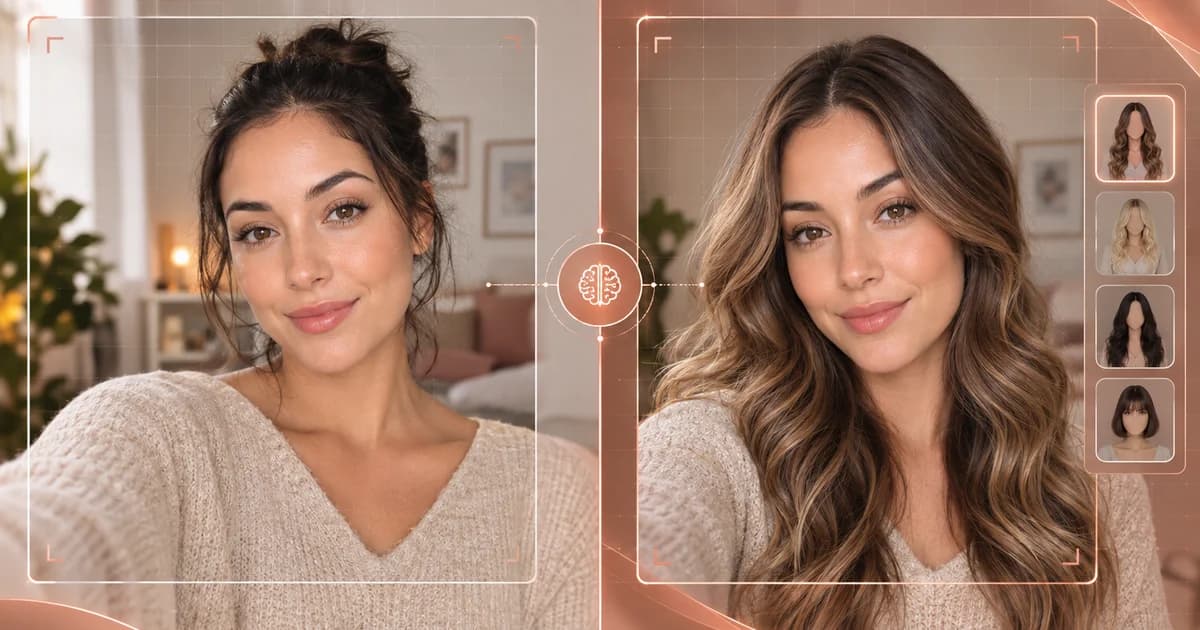
When you upload a selfie and see yourself wearing a wig you've never tried, it feels like magic. But behind that about 20 seconds wait is a carefully orchestrated pipeline of AI technologies, each doing one job extremely well.
This article breaks down exactly how AI virtual wig try-on works — every step, from the moment you choose a photo to the moment you see the result. No jargon, no hand-waving.
The Problem AI Try-On Solves
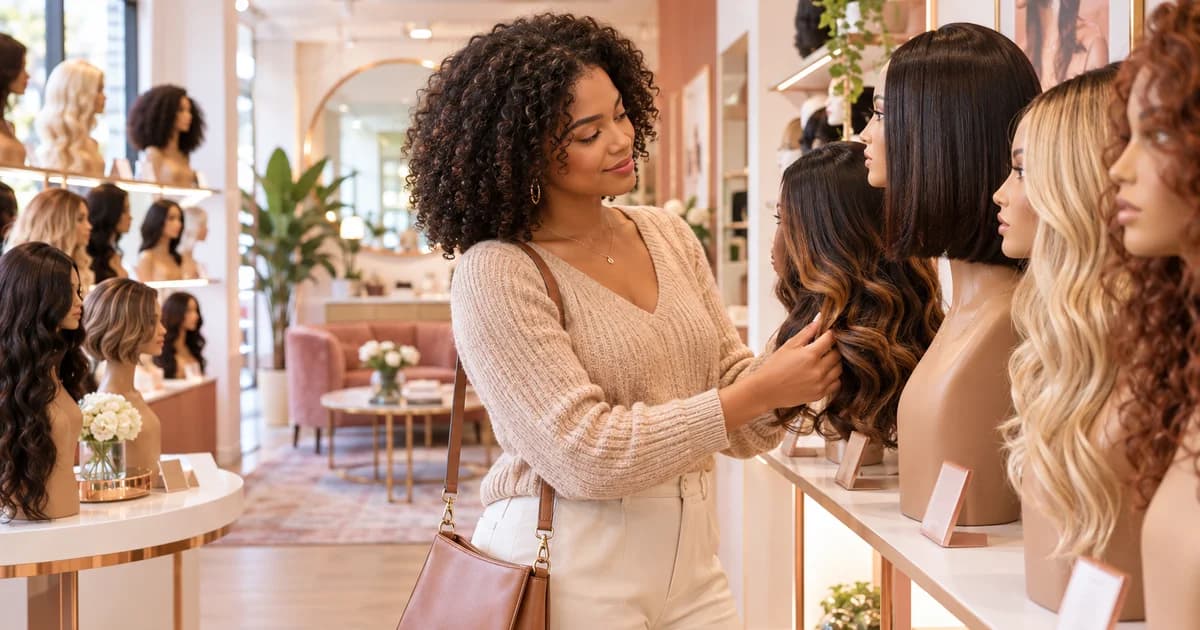
Buying a wig online is a gamble. You're spending $50–$500+ on something you've never seen on your own face. Stock photos on other models don't help — your face shape, skin tone, forehead width, and jawline are unique. What looks stunning on a model may look completely different on you.
Virtual try-on solves this by showing you a photorealistic preview on YOUR face, before you spend anything. The key word is "photorealistic" — not a cartoon filter, not a face swap, but a full AI-generated image where only the hair changes.
Step 1: Image Selection and Local Face Check
The process starts when you choose a selfie. But before anything leaves your device, the tool performs a local quality check.
Browser-Side Face Detection
In Chromium-based browsers (Chrome, Edge, Opera), the native FaceDetector API runs directly in your browser:
- Confirms a face is present in the image
- Catches unusable photos — no face, extreme angles, heavy occlusion
- Runs entirely on your device — the photo hasn't been uploaded yet
This prevents you from wasting a try on a photo the AI can't work with. If your browser doesn't support FaceDetector (like Firefox or Safari), this step is skipped and the server handles validation.
What Makes a Good Photo
Not all selfies produce good results. The AI works best with:
| Factor | Good | Bad |
|---|---|---|
| Angle | Front-facing, eyes at camera | Side profile, looking away |
| Lighting | Even, natural light | Hard shadows, backlighting |
| Hairline | Visible, no obstruction | Hidden by hat, headband, or heavy bangs |
| Head tilt | Level, minimal tilt | Extreme tilt or rotation |
| Background | Simple, uncluttered | Busy patterns competing with hair |
| Shoulders | Visible | Cropped at neck (hard to judge length) |
Step 2: Client-Side Image Compression
Before uploading, your photo is compressed in the browser using the Canvas API. This is a technical optimization that makes a real difference:
- Resize to max 1536px on the longest edge — larger images don't improve AI quality
- Compress to 85% JPEG quality — visually identical but significantly smaller file
- Typical reduction: A 4MB phone photo becomes ~200KB
Why This Matters
- Faster upload — especially on mobile networks
- Less data usage — important for users on limited plans
- Same AI quality — the generation model doesn't benefit from 12-megapixel input
- All happens in-browser — your full-resolution photo never leaves your device
Step 3: Secure Upload and Storage
After compression, the image is uploaded to encrypted cloud storage:
- AES-256 server-side encryption on AWS S3
- Presigned URL upload — the file goes directly to storage, not through our application server
- 24-hour S3 Lifecycle Rule — the file is automatically and permanently deleted
This is a deliberate architectural choice. We don't need your photo after the preview is generated, so we don't keep it.
Step 4: AI Prompt Construction
This is where the "intelligence" part begins. The AI doesn't just see your photo — it receives a carefully crafted instruction that describes exactly what to do.
What the Prompt Contains
- Your uploaded selfie — the source image
- Style description — "Change this person's hair to a chin-length blunt bob with clean, sharp edges"
- Color description — "in honey blonde color"
- Preservation instructions — "Keep the person's face, skin tone, facial expression, clothing, and background exactly the same. Change ONLY the hair."
Why Prompt Engineering Matters
The quality of the prompt directly affects the quality of the result. A vague prompt like "give this person a bob" produces inconsistent results. A precise prompt with specific length, texture, color, and preservation instructions produces a photorealistic image where the person looks like themselves — just with different hair.
We've tested and refined hundreds of prompt variations across different skin tones, face shapes, and hair textures to find formulations that work consistently.
Step 5: Image-to-Image AI Generation
The prompt and your photo are sent to an image-to-image AI model. This is the core technology — and the most computationally expensive step.
How Image-to-Image Generation Works
Unlike text-to-image models (which create an image from scratch), image-to-image models take an existing photo and modify it according to instructions. The key advantage: they can preserve what shouldn't change (your face) while transforming what should (your hair).
The model works through a process called diffusion:
- The model encodes your photo into a mathematical representation (a "latent space")
- It applies controlled noise to the hair region
- It then "denoises" that region according to the style/color description
- The result is decoded back into a pixel image
This process preserves facial geometry, skin tone, lighting, and background while generating new hair that matches the described style and color — and it does this in a single pass, producing the final result in about 20 seconds.
Multi-Model Architecture
Wigwy uses multiple AI providers with intelligent routing:
- Primary model for most generations (optimized for quality-to-cost ratio)
- Fallback model if the primary is temporarily unavailable
- Automatic retry on transient failures
This ensures consistent availability and quality, regardless of any single provider's uptime.
Step 6: Result Delivery and Quality
The generated image is sent back to your browser. What you see is a high-resolution photo of yourself wearing the selected style and color.
What You Can Do With the Result
- Side-by-side comparison — See your original photo next to the result
- Try another style — Change the style or color and generate a new preview
- Save to gallery — Keep your favorites for later comparison (requires sign-in)
- Share — Generate a unique share link to send to friends or your stylist
- Download — Save the image to your device (watermark-free on paid tries)
Understanding AI Limitations
AI generation is powerful but imperfect. Here's what to expect:
- Hairline precision — The AI approximates where natural hair meets the forehead. It won't perfectly replicate the hairline of a specific lace front wig.
- Texture detail — The overall texture (straight, wavy, curly) is accurate, but individual hair strand detail may differ from a real wig.
- Color accuracy — The color direction is correct, but exact shade matching depends on your screen's color calibration.
- Consistency — Running the same photo and style twice may produce slightly different results. This is normal for diffusion models.
Privacy Architecture: How We Protect Your Data
Privacy isn't a feature we added — it's a constraint we built the entire system around.
The Data Lifecycle
- Upload: Photo encrypted in transit (TLS) and at rest (AES-256 on S3)
- Processing: Photo accessed only to generate your preview, then the access is revoked
- Storage: 24-hour S3 Lifecycle Rule automatically deletes the file
- Training: Photos are never used to train AI models — not ours, not our providers'
BIPA Compliance
The Illinois Biometric Information Privacy Act (BIPA) requires explicit consent before processing biometric data. Wigwy:
- Obtains informed consent before uploading
- Retains consent records for the legally required 5 years
- Provides a clear data deletion path
- Never sells or shares biometric data
What We Don't Do
- ❌ Store photos longer than 24 hours
- ❌ Use photos for AI model training
- ❌ Share photos with other users (unless you create a share link)
- ❌ Require a credit card for your first try
- ❌ Collect unnecessary personal information
Frequently Asked Questions
How long does a virtual wig try-on take?
From upload to result, the entire process takes about 20 seconds. Most of that time is the AI image generation step. Image compression and upload typically take 1–3 seconds on a normal connection.
Does it work on all phones?
Yes. Wigwy works in any modern web browser — no app download needed. The local face detection feature is available in Chromium browsers (Chrome, Edge); other browsers skip this step.
Why do results sometimes look slightly different each time?
AI diffusion models are inherently stochastic — they introduce controlled randomness during generation. This means two runs of the same photo and style may produce slightly different results. Both will show the correct style and color, but details like exact hair strand placement may vary.
Is the AI getting better over time?
We continuously test new AI models and prompt formulations. When we find an improvement, we roll it out to all users. Our multi-model architecture means we can adopt better models as they become available without any downtime.
Can I use this to show my stylist what I want?
Absolutely. Save or screenshot the result and share it with your wig specialist or hairdresser. The preview is a much better communication tool than trying to describe a hairstyle in words.
Try It Yourself
Ready to see the technology in action? Try Wigwy free — create a free account, upload a selfie, and get a photorealistic wig preview in about 20 seconds. Your first try is on us.
Want to browse first? Check out the full style catalog with 60+ styles across 9 categories.